Sell a simple or variable ticket
you want to turn an event into something people can actually buy - one price, or several tiers like General / VIP.
Tickets in Venuera are WooCommerce products of a special type. There are two:
Event Ticket – a single ticket type at one price (e.g. “General Admission – €20”).
Variable Event Ticket – one product with several tiers as variations (e.g. General / VIP / Backstage), each with its own price and capacity.
Create a simple ticket
- Go to Products → Add New.
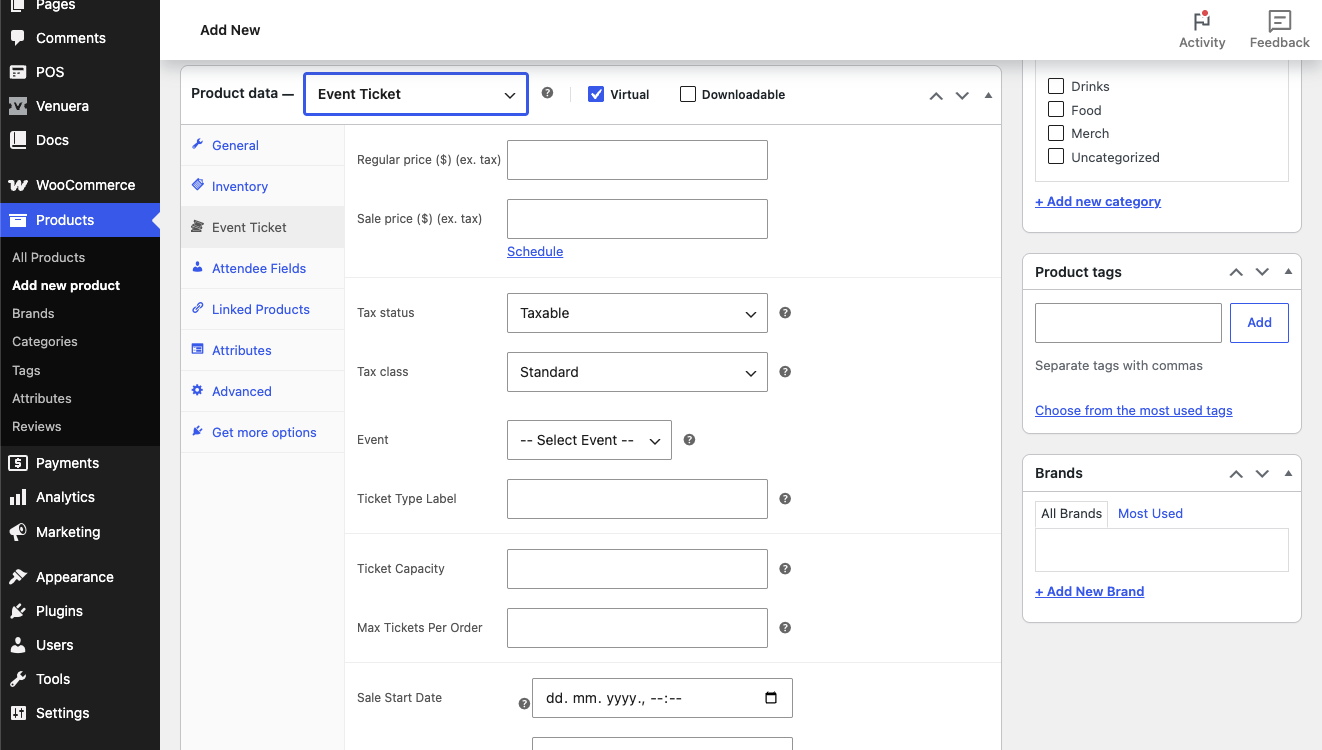
- In the Product data box, open the product-type dropdown and choose Event Ticket.
- Set the price on the General tab.
- Open the Event Ticket tab in the product-data panel and pick the event this ticket admits to from the Event dropdown – this link binds the sale to your event and its check-in rules.
- Set the Ticket Capacity field on the same tab if the event has a limit (leave it empty for unlimited). Venuera blocks overselling at both add-to-cart and checkout. Capacity is this Venuera field – not WooCommerce’s Inventory/stock.
- Publish.
The Event Ticket tab also has a few optional fields worth knowing: a Ticket Type Label (the wording that prints on the ticket), Max Tickets Per Order, and ticket Sale Start / Sale End dates.
Create a variable ticket (tiers)
When one event has several price tiers, use Variable Event Ticket instead of publishing three separate products:
- Set the product type to Variable Event Ticket.
- Under Attributes, add an attribute such as “Ticket type” with values General, VIP, Backstage, and tick Used for variations.
- Under Variations, generate the variations and give each its own price and Ticket Capacity (a capacity field on each variation; leave it empty to inherit the parent or be unlimited).
- Link the product to the event on the Event Ticket tab, as above.
Buyers now choose their tier on the event page, and each tier tracks its own capacity.
Test the purchase
Open the event page (or the product) on the front end, add a ticket to the cart and go through checkout. On a successful order Venuera generates one ticket per quantity – each with its own unique ID and QR code – and attaches them to the order. To take real money you need a payment method: see Connect WooCommerce payments.
When tickets are issued
Ticket records are created as soon as the order first reaches Processing or Completed, whichever happens first. The Create Tickets On setting (Venuera → Settings, default Order Processing) controls when the ticket email is sent – choose Order Completed if you only want the ticket emailed once you mark the order complete.
Next step
Connect a payment gateway so you can take real orders.