Tickets in emails & as PDFs
you want to control how buyers receive their tickets - a download link, a QR code in the email, or a PDF attached.
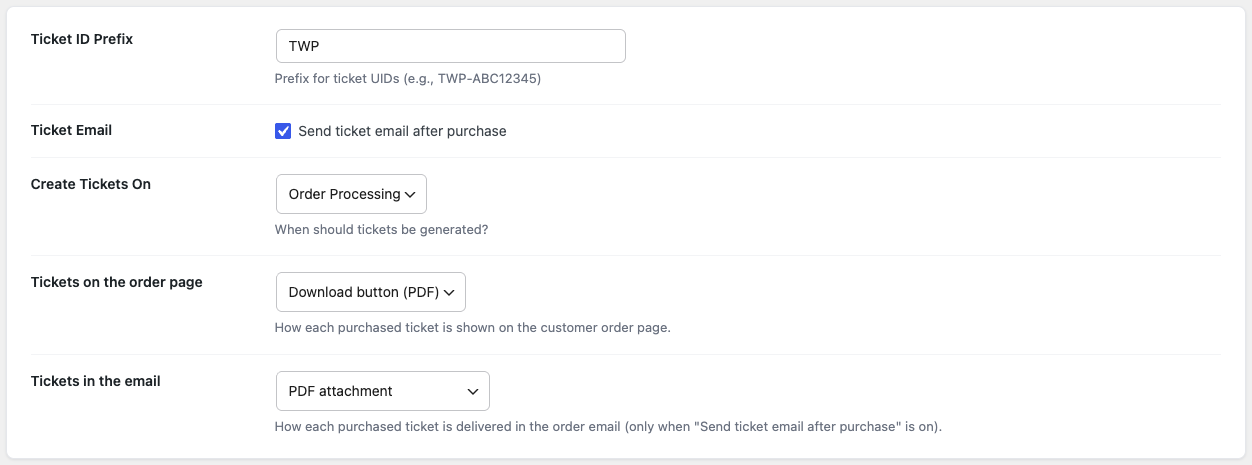
After a paid order, Venuera shows each ticket on the WooCommerce order-received page and in the order email. You choose the delivery method for each, under Venuera → Settings. Both places render the same clean per-ticket card: the event name, the attendee details, and the QR code or download – so the buyer gets a consistent ticket wherever they look.
Order page delivery
On the order-received page, the “Tickets on the order page” setting offers:
- Download button (PDF) – each ticket card shows a button that downloads its PDF.
- Show QR code – the scannable QR is rendered straight into the card, so the buyer can be admitted from their screen without downloading anything.
Email delivery
The “Tickets in the email” setting controls what lands in the customer’s inbox. You pick one of:
- Download link – a button in the email that links to each ticket’s PDF (the default).
- QR code in the email – the QR is embedded inline (as a CID image) so it shows even when the reader blocks remote images.
- PDF attachment – the ticket PDFs are attached to the email, with a short note.
- PDF attachment + QR code – both: PDFs attached and the QR shown inline in the body.
The “Send ticket email after purchase” toggle
This master switch decides whether Venuera adds tickets to the WooCommerce order email at all. When it’s off, no ticket content (and no PDF attachment) is added to the email – useful if you deliver tickets only on the order page or in person. The PDF attachment respects this toggle, so turning it off also stops attachments.
The PDF itself
Every ticket PDF is produced by the Ticket Designer from the template assigned to that ticket. The PDF matches the on-screen design pixel-for-pixel, with the same embedded fonts, and carries the ticket’s unique QR. Download links are tokenised and time-limited for security.
Test it
Place a test order and check the result. On a local site, a mail-catcher such as MailHog/Mailpit lets you open the actual email and confirm the QR or attachment renders as configured.
Next step
Tickets are out in the world – now learn how to check people in and set entry rules.