Export attendees to CSV/PDF
You're here because
you need a guest list off the platform - for a printed door sheet, a mail-merge, or your records.
Venuera keeps an attendee record for every ticket sold. You can pull that list out at any time for a specific event.
Export the list
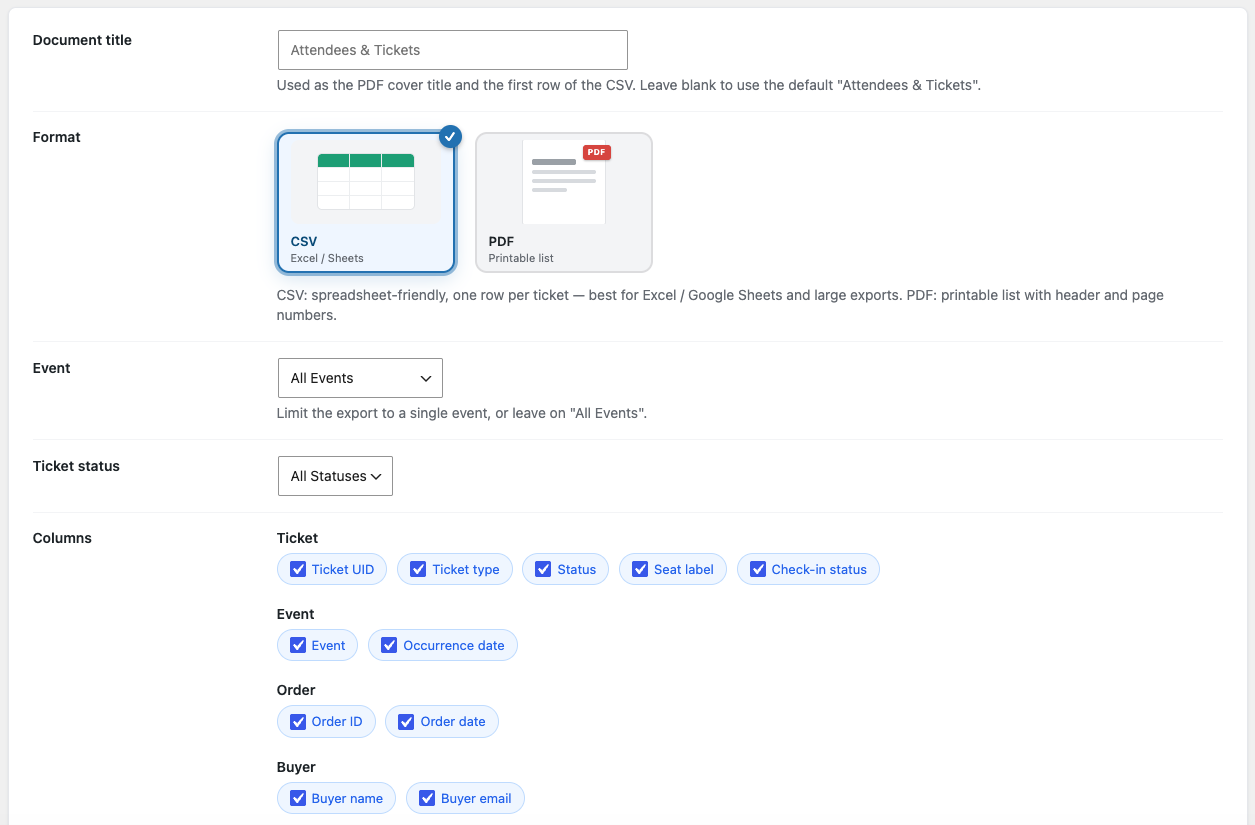
- Go to Venuera → Settings → Export.
- Filter by event – and, for a recurring series, by the specific date. You can also narrow to a single ticket type.
- Tick the columns you want to include.
- Choose the CSV or PDF format and click Download.
What’s included
The columns are yours to pick. Available columns are Ticket UID, Event, Occurrence date, Ticket type, ticket Status, Order ID, Order date, Buyer name and email, Attendee name, email and phone, Seat label, and Check-in status – plus a column for each Custom Attendee Field you collect, so a question like “T-shirt size” or “Dietary needs” comes straight through to your spreadsheet.
Printable door list: the PDF export is a clean, striped table of the same columns – handy as a paper backup even when you’re scanning with the app.
Next step
For totals and trends rather than a raw list, see Sales & check-in reports.
Was this article helpful?
No or only partly? Tell us what was missing