Manual check-in & check-in rules
you want to admit attendees and control how a ticket may be used - once, several times, only during a window, or once per day.
Even without the dedicated app, the free core can check people in from wp-admin and enforces a full set of check-in rules. The rules engine lives in the core, so a ticket behaves identically whether it’s scanned from the admin, the Check-in app, or the POS.
Check someone in from the admin
- Open Venuera → Tickets and find the ticket.
- Use its check-in control to mark an entry. Venuera records the entry with a timestamp and who did it, and flips the ticket to checked-in.
- Every attempt is written to an audit log, so you can see when each entry happened and undo the last one if it was a mistake.
The check-in rules
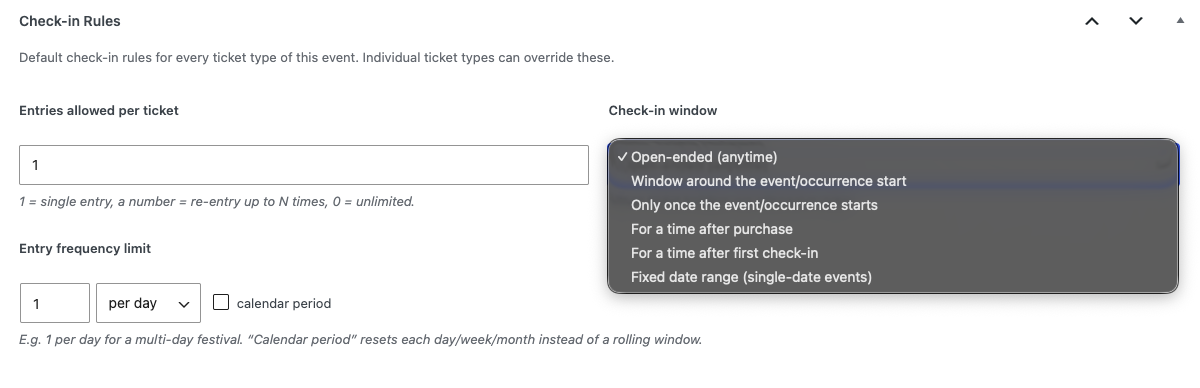
Rules are resolved in layers: a global default, overridden by a per-event setting, overridden by a per-ticket-type setting. Set the broad policy once and only override where a specific event or tier differs. Out of the box, tickets are single-entry with an open-ended window until you change the global default. The rules are:
- Max entries – how many times a ticket may be used: single entry (1), a fixed number (N), or unlimited (0).
- Availability window – when the ticket may be scanned at all (see below).
- Per-time-basis limit – e.g. “1 entry per day” for a multi-day pass, either rolling (a window of the last hour/day/week/30 days) or calendar (resetting at the start of the local period).
Availability windows
The availability rule has several modes, all computed in UTC so they’re correct across time zones:
- Open-ended – always valid.
- Event window – valid from N minutes before the event start to N minutes after.
- Upon start – valid from the event start time onward.
- Time after order – valid for N minutes after the ticket was purchased (good for timed-entry vouchers).
- Time after first check-in – once first used, valid for N more minutes (e.g. a 3-hour re-entry pass).
- Date range – valid only between two specific dates/times.
What a scan returns
When a ticket is checked, the engine returns a precise result: entry allowed, already used, max reached, not open yet, window closed, limit reached, wrong event, or invalid (refunded/cancelled). The same result codes drive the colour and message you see in the Check-in app.
Next step
For doors with crowds, the Check-in app turns any phone into a scanner – and works fully offline while still enforcing every rule above.