Install the check-in app
you want to scan tickets at the door from a phone - and install it like an app so staff just tap an icon.
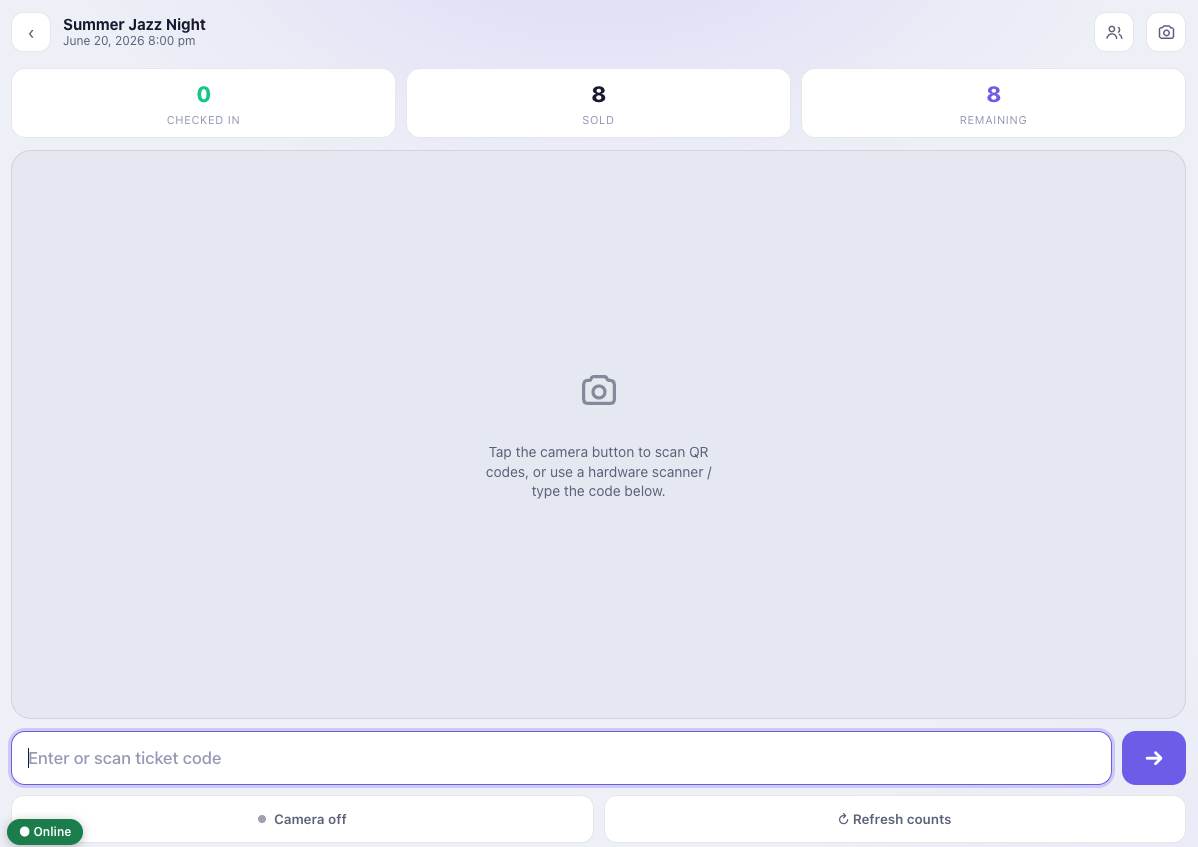
The Check-in app turns any phone or tablet into a door scanner. It runs in the browser – no app store – and installs to the home screen as a Progressive Web App.
Open it
- With the add-on active, the app lives at your site’s /checkin/ URL (you can change the slug in Venuera → Settings → Check-in).
- Door staff sign in with a WordPress account that has check-in access (see the Door Staff role).
- Pick the event – and the date, for a recurring event – and the scan screen opens.
Install to the home screen
Use the browser’s Add to Home Screen / Install option to put the app on the device. It then launches in its own window from its own icon (no browser address bar or tabs), so staff aren’t fumbling with browser tabs at the door.
Ways to scan
You can admit people three ways: the phone camera, a USB or Bluetooth reader, or by typing the ticket code into the manual box. All three run the same check-in rules.
Next step
Set up the most common method: camera scanning.