The 3D seat map: 2D and 3D views for buyers
Most seat maps are a flat diagram of dots. With Venue Designer 1.1 your buyers get something better: a 3D model of your actual venue, built from the same design you already drew. They can rotate the room, zoom in to a table, see how far a row is from the stage – and pick the exact seat right there in 3D. The classic 2D plan is still one click away, so every buyer gets the view that works for them.
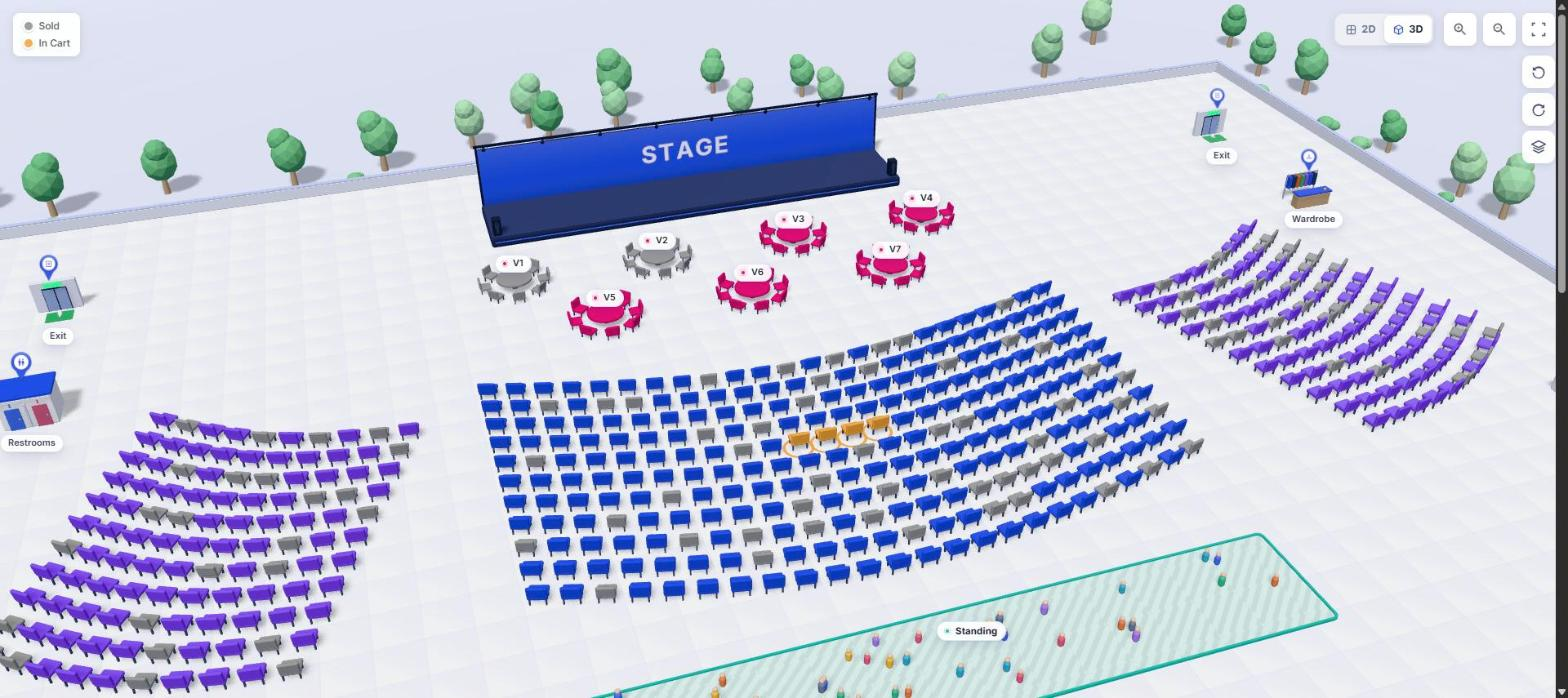
2D or 3D: the same seats, two ways to look at them
The seat map has a 2D / 3D switch in its top-right corner. Both views show the same venue design, the same seats and the same live availability – switching never loses the buyer’s selection.
- 2D is the familiar flat plan: fast to scan, perfect for precise picking on a small screen.
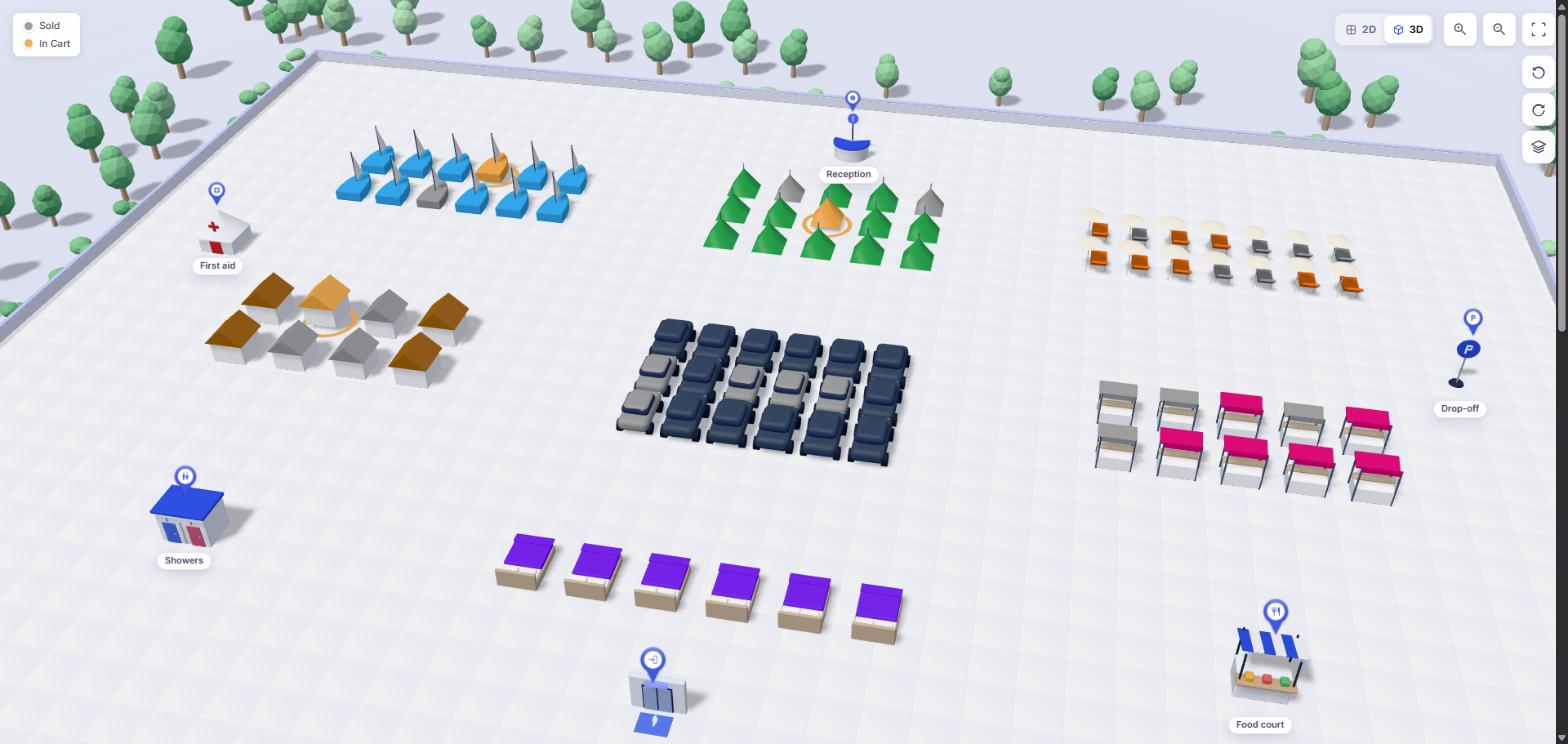
- 3D shows the room as it really looks: chairs facing the stage, tables with their chairs, the stage with its backdrop, standing areas with a small crowd, and bars, exits and restrooms as little 3D landmarks.
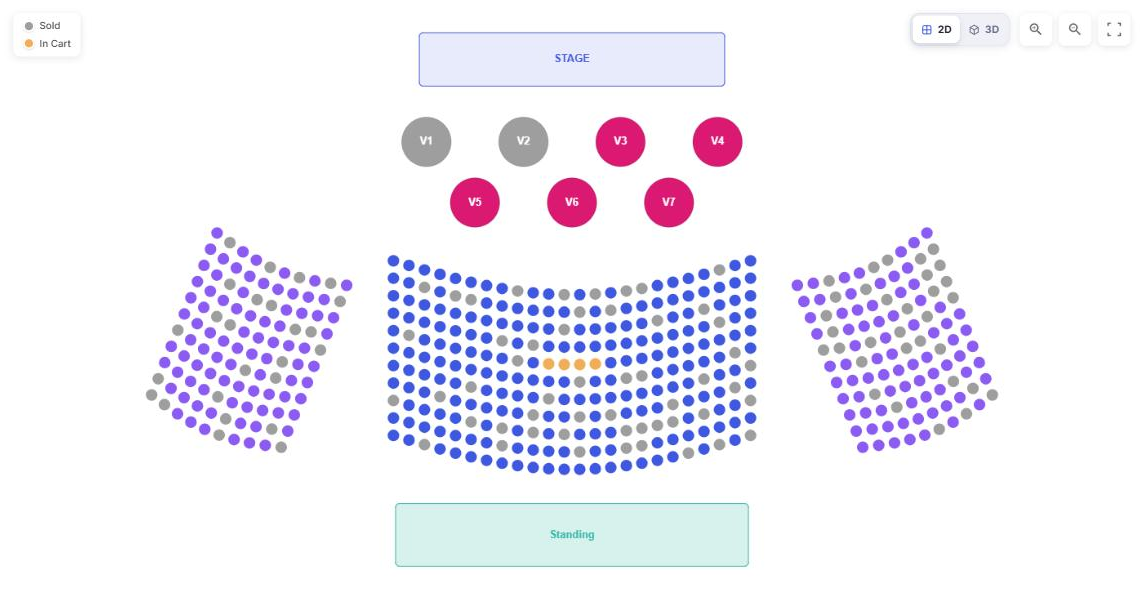
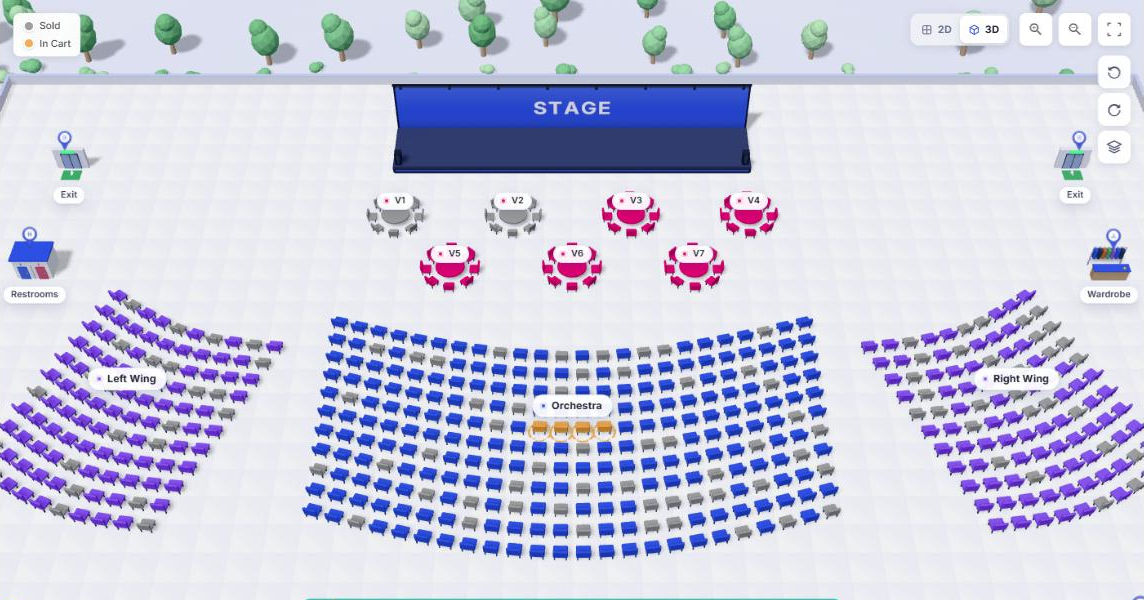
Picking seats in 3D
3D is not a preview – it is a fully working seat map. Buyers click a seat, a table or a standing area to select it, exactly as in 2D. Seat holds, pending payments, the sold and in-cart colours, prices and the cart all behave the same way.
- Rotate left / Rotate right turn the camera around the room.
- Top view looks straight down, like a floor plan.
- Drag to move around, scroll or pinch to zoom. Section and table names float above the scene, and seat numbers appear as you zoom in.
Tables in 3D, seat by seat
Round and rectangular tables are rendered with their chairs around them. A table sold as a whole lights up as one unit; a table sold seat by seat lets the buyer pick individual chairs – you can see exactly which chairs at the table are still free.
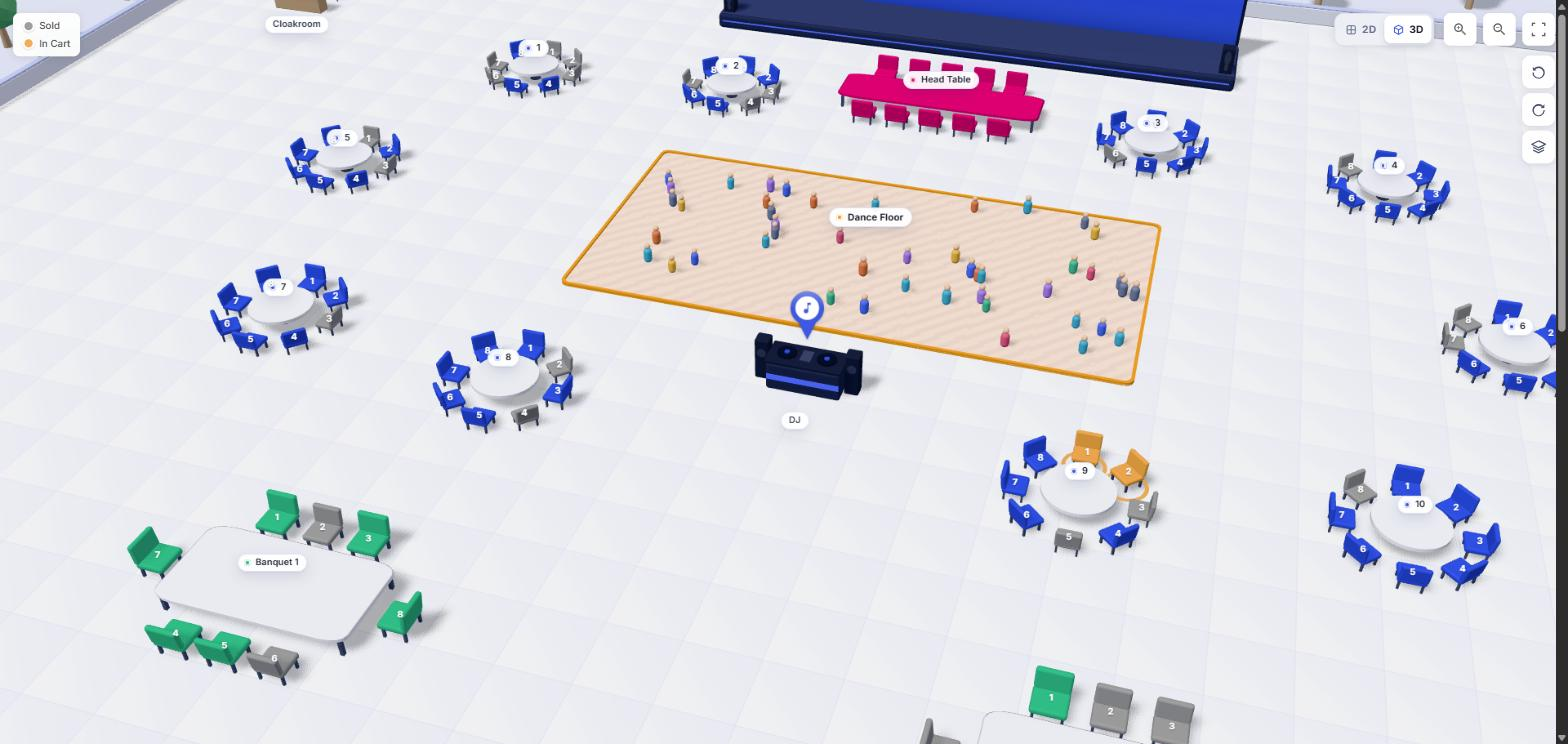
Not just chairs: boats, tents, cabins and cars
Every seat shape has its own 3D model: armchair, booth, sun lounger, bed, cabin, tent, boat, parking bay, car and wheelchair space. That means the same seat map sells marina slips, campsite pitches, glamping beds, beach club loungers, market booths and parking – each one a real, bookable spot with its own hold and availability.
Choose the view per event
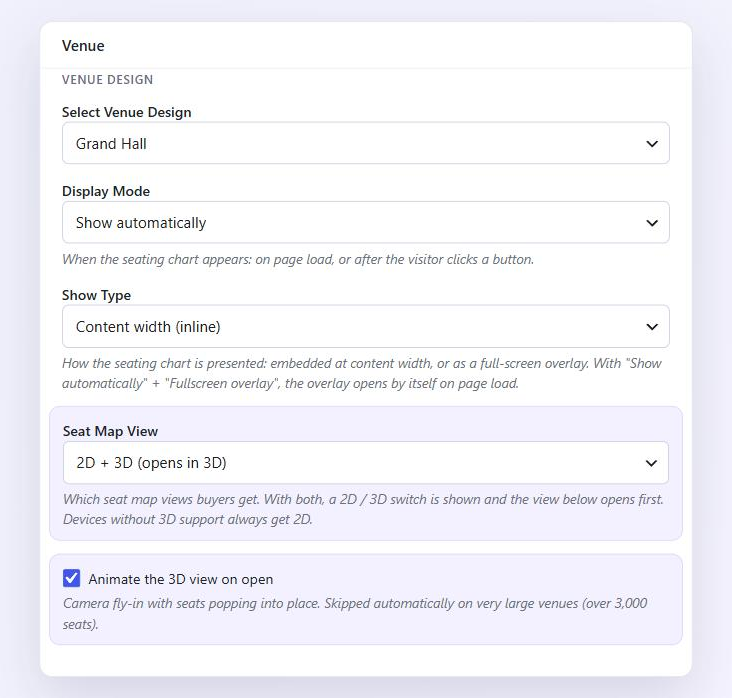
Open the event and find the Venue Design settings (where you select the venue design and the display mode). The Seat Map View setting has four options:
- 2D + 3D (opens in 2D) – the default. Buyers get the 2D / 3D switch and start in 2D.
- 2D + 3D (opens in 3D) – the same switch, but the map opens in 3D first.
- 2D only – no switch, just the flat plan.
- 3D only – no switch, always the 3D map.
When both views are on, the browser remembers the buyer’s last choice and opens that view next time.
A cinematic first look
Animate the 3D view on open adds a short camera fly-in with the seats popping into place. It plays only the first time 3D opens, and it is skipped automatically on venues with more than 3,000 seats so big maps open instantly. The option is hidden when the event is set to 2D only.
Large venues stay fast
3D uses the same overview (macro) mode threshold as the 2D map. Zoomed out, each section is drawn as one block with the number of free spots and an availability tint; clicking a section flies in so the buyer can pick a seat. Very large venues also switch to a lighter chair model to stay smooth.
Performance and older devices
The 3D engine loads only when a visitor actually opens the 3D view, so pages that stay in 2D are not slowed down at all. Devices or browsers without WebGL support always get the 2D map, even when the event is set to 3D only.
Nothing to redraw
3D is built from the design you already have. Every venue created before version 1.1 works in 3D the moment you update – rows, curves, skews, rotations, tables, zones and icons all carry over one to one.
For developers
The venuera_venue_default_view filter receives the initial view ('2d' or '3d') and the event ID, and lets you override which view opens first.
Next step
Want to arrange the room itself in 3D? See Edit your venue in 3D.